Turing Code Classifier - GUI Documentation
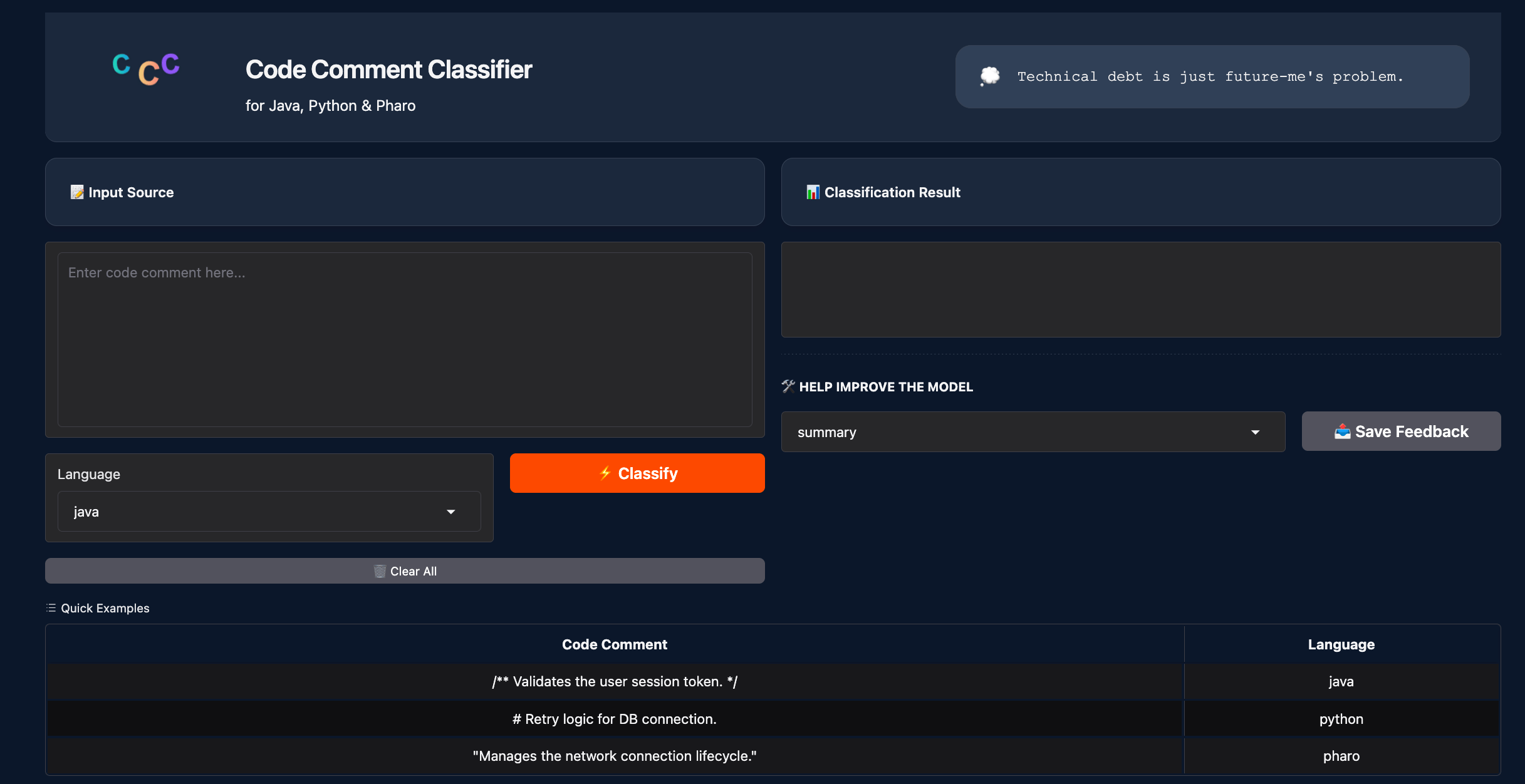
The Graphical User Interface (GUI) for the Turing Code Classifier is built with Gradio and integrated into FastAPI. This interface allows developers and stakeholders to interact with the model visually and provide human-in-the-loop feedback.
Overview
The GUI serves two primary purposes:
- Real-time Inference: Allows users to input code comments and receive immediate classification predictions from the model
- Data Collection: Enables users to correct model predictions, which are saved locally to create a dataset for future fine-tuning
Technical Architecture
The GUI is mounted onto the main FastAPI backend.
- Framework: Gradio
- Integration: Mounted via
gr.mount_gradio_appwithin FastAPI - Location: Accessible at the
/gradioendpoint - Source Code:
turing/api/demo.py: Contains the UI layout, custom CSS, and event logicturing/api/app.py: Handles the mounting of the interface to the API
How to Run
Since the GUI is integrated into the API, you simply need to start the main application server.
- Navigate to the project root
- Start the server using Uvicorn:
- Access the interface in your browser:
- Direct Link: http://127.0.0.1:8000/gradio
- Via API Docs: Click the indicated logo at http://127.0.0.1:8000/docs
User Guide
1. Classifying Comments
- Input Source: Paste the code comment (e.g.,
// TODO: Fix this hack) into the large text box - Language: Select the source programming language (
java,python, orpharo) from the dropdown menu - Classify: Click the Classify button
- Result: The predicted category will appear in the "Analysis Result" box on the right
Note
Syntax Validation: The system automatically checks if the input syntax matches the selected language. If you try to classify a Java comment (e.g., starting with //) while "Python" is selected, the system will return an error message instead of a prediction.
2. Submitting Feedback
If the model's prediction is incorrect, you can help improve it:
- Look at the "Help Improve the Model" section below the result
- Correct Label: Select the actual correct category from the dropdown menu
- Note: The options in this menu update dynamically based on the selected programming language
- Submit: Click Save Feedback. A confirmation message will appear
Feedback Data Storage
User feedback is persisted to a local CSV file. This file is intended to be used to analyze model errors and retrain the model.
File Path: reports/feedback/feedback_data.csv
Data Schema:
| Column Name | Description | Example |
|---|---|---|
| Timestamp | Date and time of submission (YYYY-MM-DD HH:MM:SS) | 2025-12-12 14:30:00 |
| Input_Text | The code comment provided by the user | "# This is a setup" |
| Language | The programming language context | python |
| Model_Prediction | The category originally predicted by the AI | Summary |
| User_Correction | The correct category selected by the user | Usage |
Note
The CSV file acts as an append-only log. It is automatically created if it does not exist.
UI Customization
- Dark Mode: Fully supported. The UI automatically adapts to system preferences or browser settings
- Assets: The header displays a custom SVG logo loaded from
reports/figures/logo_header.svg - Dev Notes: A dynamic ticker in the header displays "developer thoughts"